

Navigating Payment
This how-to guide includes the process on how to complete your payments. It will cover the two methods available:
Credit Card Payment via Stripe
1.
Credit Card Payment via Stripe
For new participants or first time credit card payment, you’ll receive an invoice emailed to you with a request to pay using the Stripe payment page. For ongoing collaborators who opt-in to saving their credit card information you will have your payments automatically processed by Lincoln and a receipt emailed shortly after the session.
Demo of invoice email:

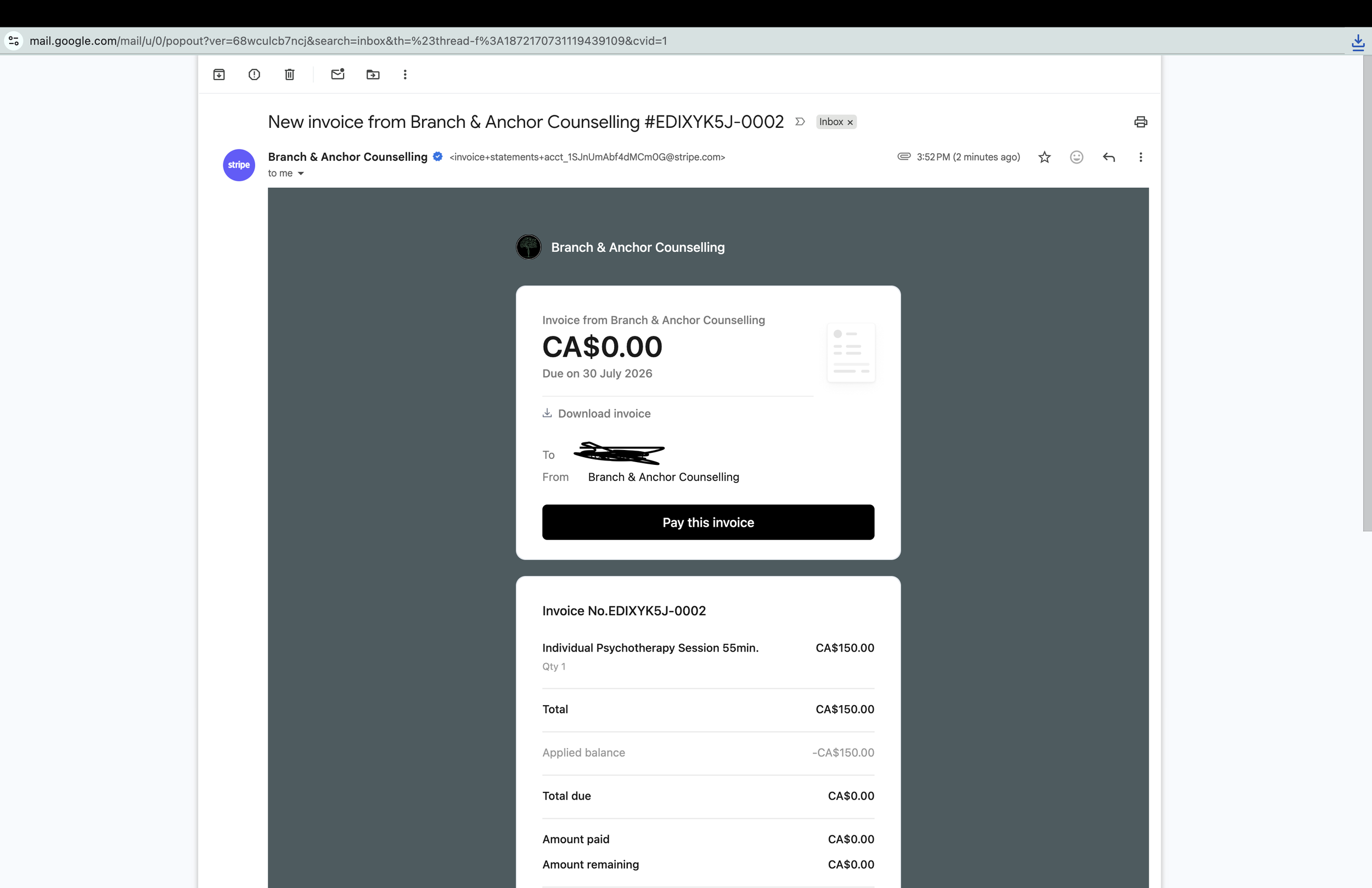
For new collaborators or first time credit card payment occurrences, you can follow the video demo below and or follow the steps below:
Review the invoice amount and memo details to ensure it is accurate.
You can download the pdf invoice attached to the email.
Select “pay this invoice” which will open a new tab to begin the payment process.
You’ll be prompted to choose your payment method
Next you’ll enter your card card information and billing details
Review all the information (billing, amounts etc) and once it’s all set, select “Pay”
Once your purchase is successful you’ll immediately receive confirmation on the page and can download your receipt or invoice.
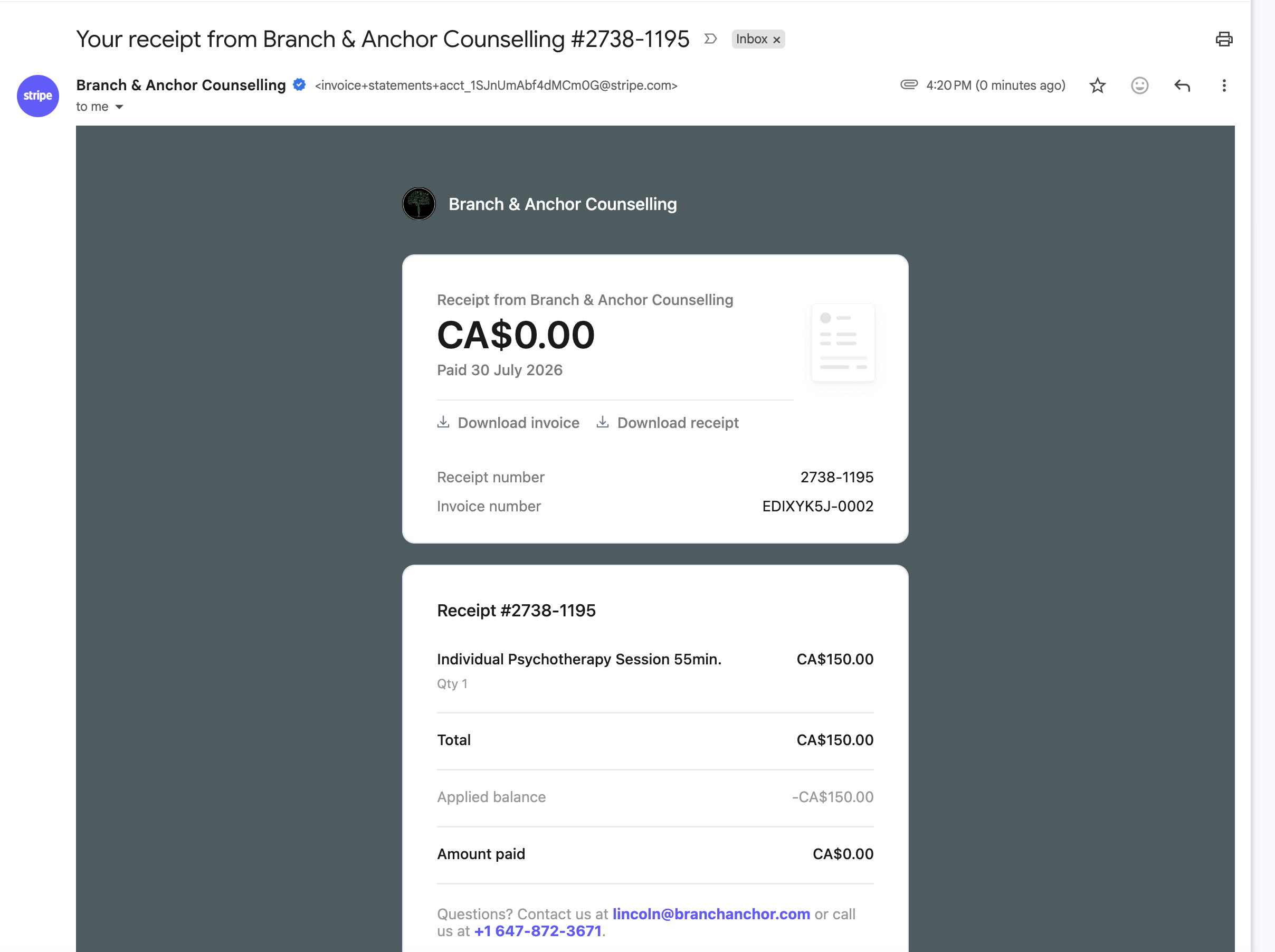
You will also receive a receipt emailed to you.

Demo of receipt email:
Accessing your invoices, receipts and billing information via the customer portal
After completing this payment process, you can access your billing history, update your credit card details by following the link in your invoice/receipt. You’ll be prompted to enter your email address and will receive an email with a unique link to login to your portal. You can also access the portal using this link here.
E-transfer Payment
2.
For collaborators paying by e-transfer, you’ll receive an invoice emailed to you with an invoice attached. Please send the invoiced amount to lincoln@branchanchor.com (auto deposit enabled). The invoice pdf also includes the e-transfer instructions. Once you’ve successfully sent the e-transfer and it’s received, your payment will be processed by Lincoln and a receipt emailed shortly afterwards.
Demo of invoice email:

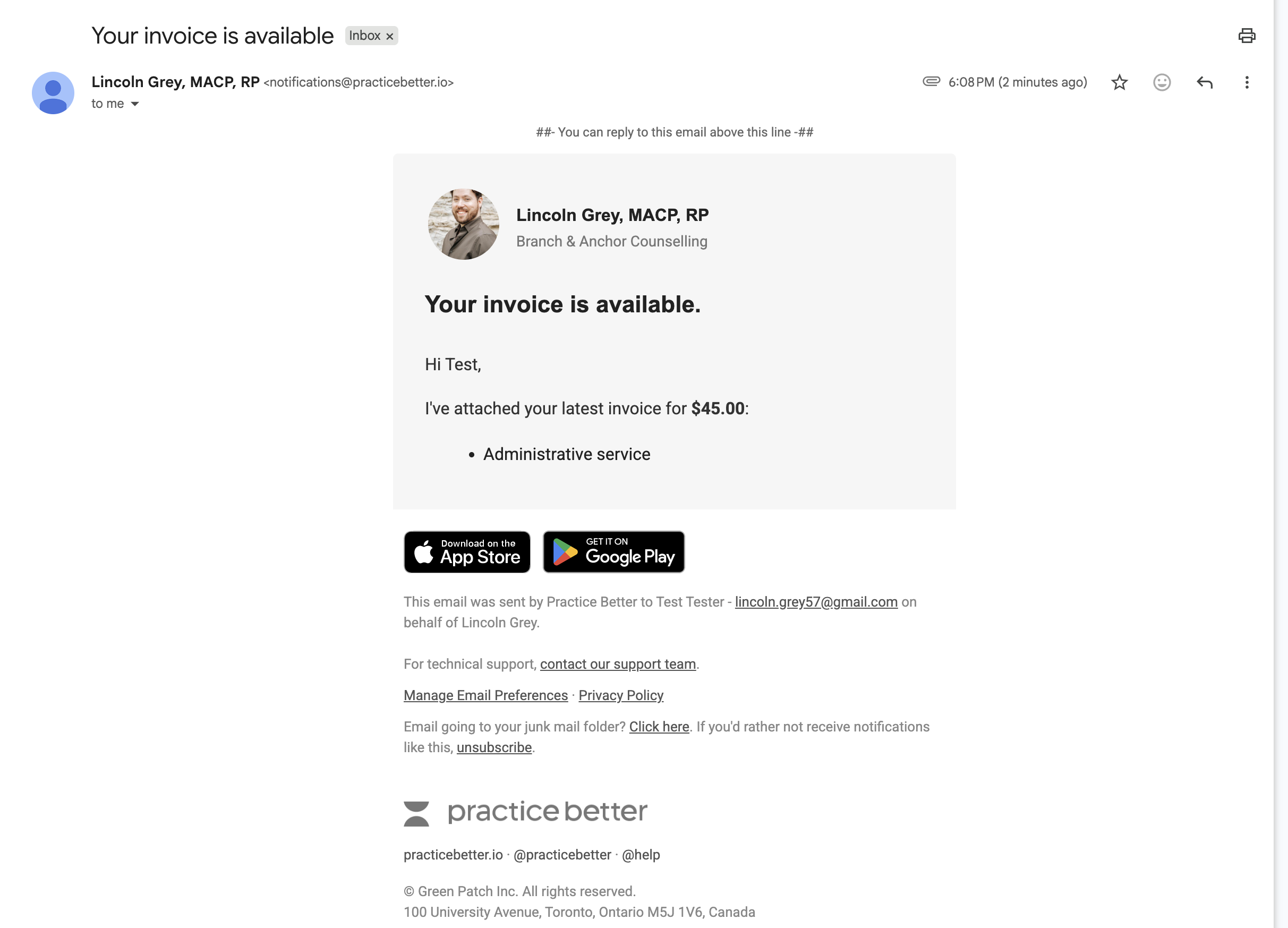
You can follow the steps below:
Review the invoice amount and memo details to ensure it is accurate.
You can download the pdf invoice attached to the email.
Scroll down to the attached invoice and open it to review the e-transfer instructions at the bottom of the invoice.
Log in to your bank account and follow the instructions to send an e-transfer
Ensure you include “Lincoln - Session Date” in the notes/memo
Send the e-transfer to lincoln@branchanchor.com
Once your transfer is received successfully you’ll soon receive a receipt to your email address and can download your receipt or invoice.
Accessing your receipts via the Practice Better portal
You can access your receipts by clicking on the “Invoice & Billing” tab when you’re logged into your account. Click here to login into the portal.